Nano Banana 2 Photo Restoration Prompts for Old Photos
Old photographs hold memories that cannot be recreated. Unfortunately, scratches, fading, blur, stains, tears, and years of physical damage can make those memories difficult to preserve.
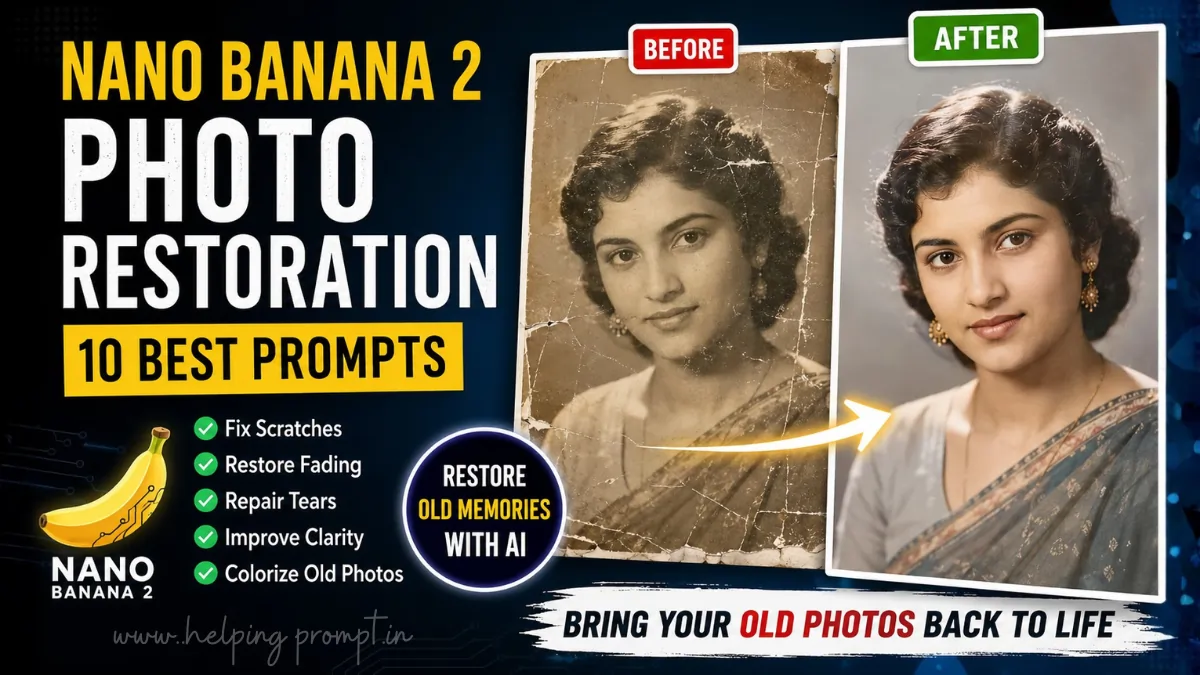
Nano Banana 2 Photo Restoration Prompts can help you repair and enhance old photographs using AI-powered image editing. With a carefully written prompt, you can instruct the AI to reduce visible damage, improve clarity, restore faded tones, colorize black-and-white images, and prepare old photos for high-resolution digital preservation.
However, AI restoration should be used carefully. When parts of an original photograph are missing, an AI model may generate plausible-looking details rather than recover historically accurate information. Always preserve the original scan and review important facial and historical details manually.
In this guide, you’ll find 10 copy-and-paste Nano Banana 2 Photo Restoration Prompts, practical restoration tips, a step-by-step workflow, and best practices for achieving natural-looking results.
Why Use Nano Banana 2 Photo Restoration Prompts?
Photo restoration is more complicated than simply increasing sharpness.
Old photographs may contain multiple problems at the same time, including scratches, faded colors, damaged edges, dust, stains, blur, and missing details.
A detailed restoration prompt helps communicate exactly what should be repaired and, equally importantly, what should remain unchanged.
For example, you can instruct the AI to:
- Reduce scratches and visible damage.
- Repair minor tears and cracks.
- Improve facial clarity carefully.
- Restore faded contrast.
- Colorize black-and-white photographs.
- Reduce noise without creating plastic-looking skin.
- Preserve clothing, hairstyles, and period-specific details.
- Maintain the original composition.
- Prepare restored images for higher-resolution output.
The key is to tell the AI to preserve identity and original characteristics instead of simply asking it to “make the photo better.”
10 Best Nano Banana 2 Photo Restoration Prompts
You can copy these prompts and customize the details according to your photograph.
1. Complete Old Family Photo Restoration Prompt
Prompt:
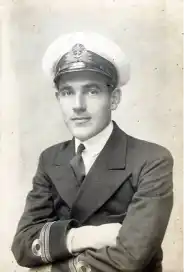
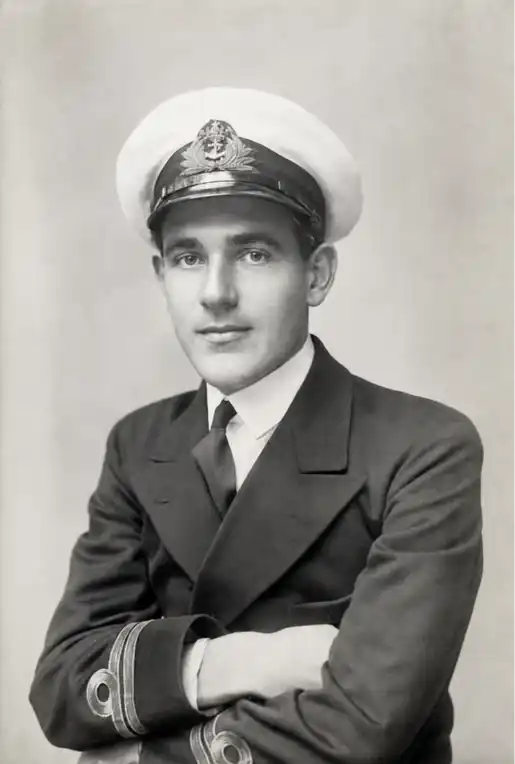
Restore this old family photograph while preserving the identity, facial structure, expressions, clothing, pose, background, and original composition of every person. Carefully reduce visible scratches, dust, stains, fading, minor tears, and age-related damage. Improve overall clarity and contrast naturally without making faces look artificial or overly smooth. Preserve realistic skin texture and original photographic character. Do not unnecessarily change facial features or invent new objects. If any damaged area requires reconstruction, keep the result visually consistent with the surrounding photograph while avoiding unsupported changes wherever possible. Produce a clean, natural-looking restoration that remains faithful to the original image.
Best for: Family albums, group photographs, childhood memories, and old printed portraits.
2. Scratched and Damaged Photo Repair Prompt
Prompt:
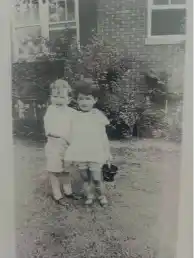
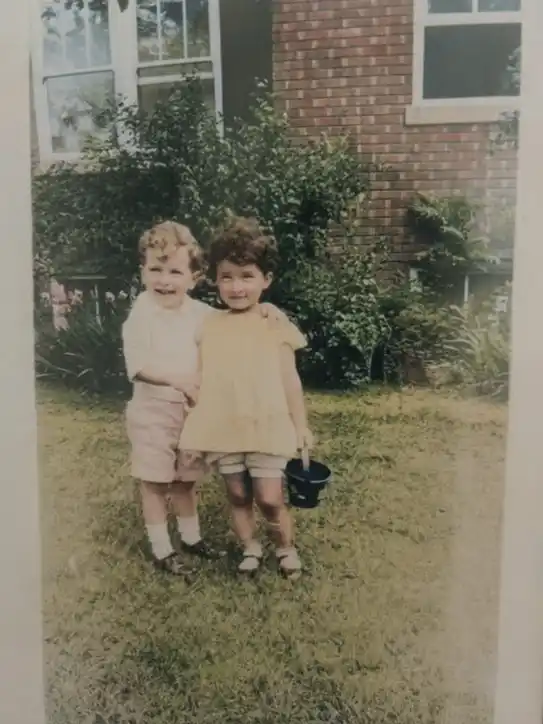
Repair this damaged vintage photograph by carefully reducing scratches, cracks, dust marks, stains, creases, and small damaged areas. Preserve the original subject, facial identity, clothing, hairstyle, pose, lighting direction, background, and composition. Restore lost contrast and improve clarity without introducing excessive sharpening. Keep natural skin texture and authentic photographic detail. Avoid adding objects or changing historically relevant visual elements. Prioritize faithful restoration over creative reinterpretation.
Best for: Scratched prints, folded photographs, and physically damaged images.
3. Black-and-White Photo Colorization Prompt
Prompt:
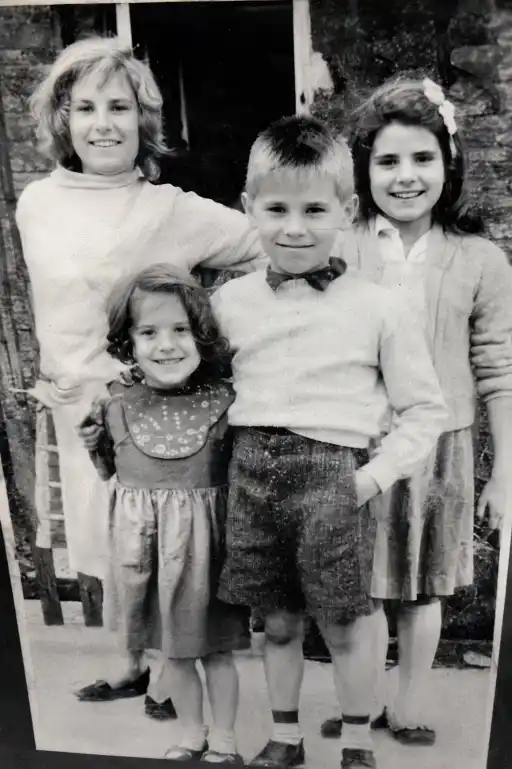
Carefully colorize this black-and-white photograph while preserving the original facial identity, composition, lighting, shadows, clothing details, and historical character. Use natural and restrained skin tones and realistic environmental colors. Keep the color palette appropriate to the apparent time period and avoid excessive saturation. Do not modify facial features, hairstyle, clothing design, background objects, or composition. The final result should look like a carefully colorized historical photograph rather than a modern digitally generated image.
Best for: Vintage portraits and historical black-and-white photographs.
Important: AI-generated colors are interpretations unless you have reliable reference information about the original colors.
4. Faded Vintage Photo Restoration Prompt
Prompt:
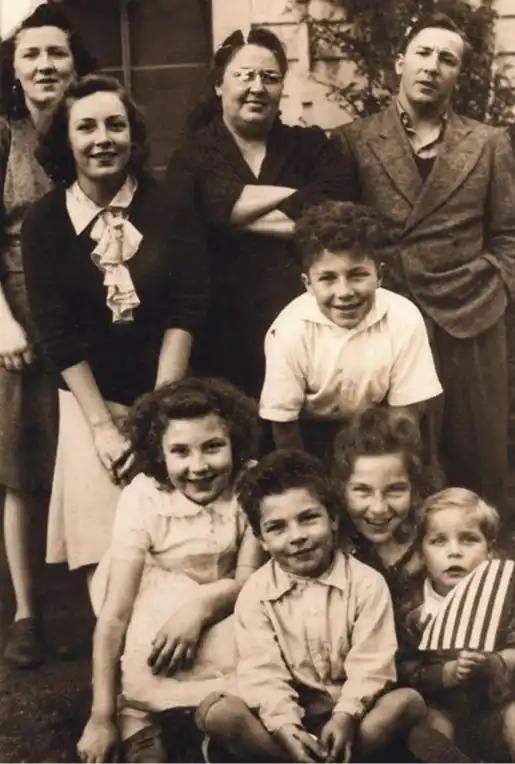
Restore this faded vintage photograph by improving tonal balance, contrast, and visible detail while preserving its original identity and character. Reduce discoloration, fading, dust, and age-related degradation. Recover natural-looking tonal separation without making the photograph excessively sharp or modern-looking. Preserve faces, clothing, background details, film grain, and original composition. Maintain an authentic vintage photographic appearance while improving overall visibility and clarity.
Best for: Washed-out photographs and faded family albums.
5. Old Portrait Face Restoration Prompt
Prompt:
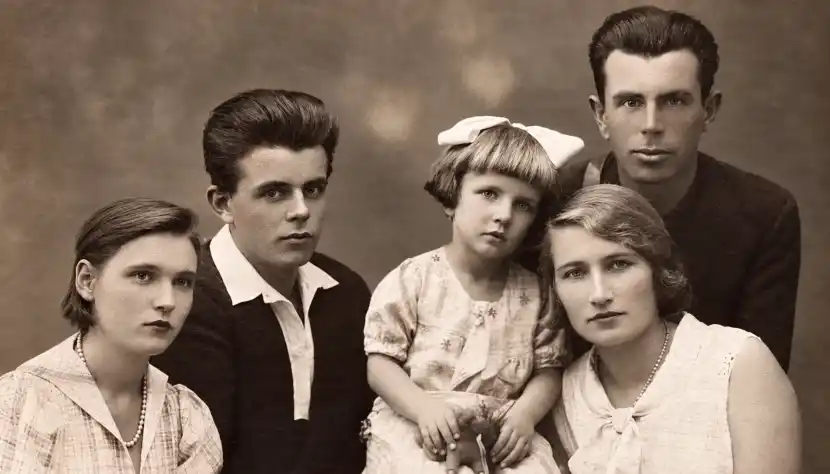
Carefully restore this old portrait with special attention to facial clarity while preserving the person's original identity. Reduce scratches, blur, dust, fading, and minor damage affecting the face. Preserve the original facial proportions, eye shape, nose, mouth, expression, hairstyle, age characteristics, and natural skin texture. Do not beautify, reshape, de-age, or significantly alter the person. Improve clarity conservatively and keep the final portrait faithful to the source photograph.
Best for: Old individual portraits where facial identity is especially important.
6. Blurry Old Photo Enhancement Prompt
Prompt:
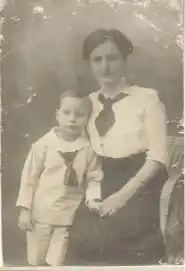
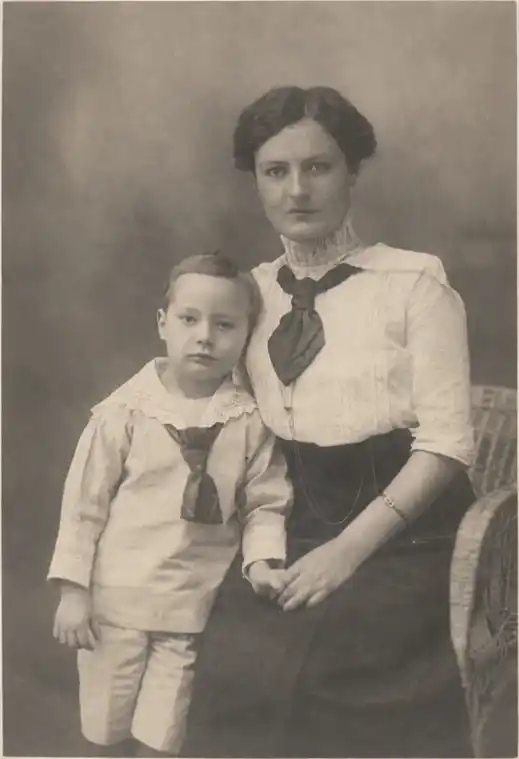
Improve the clarity of this blurry old photograph while preserving the original people, objects, facial identities, composition, and background. Reduce mild blur and noise carefully without creating artificial details or excessive sharpening. Preserve natural edges, realistic skin texture, clothing patterns, and the original photographic style. Do not change facial features or invent fine details that cannot be reasonably inferred from the visible image. Keep the enhancement subtle, realistic, and faithful to the source.
Best for: Mildly blurred scans and soft-focus photographs.
7. Torn Photo Reconstruction Prompt
Prompt:
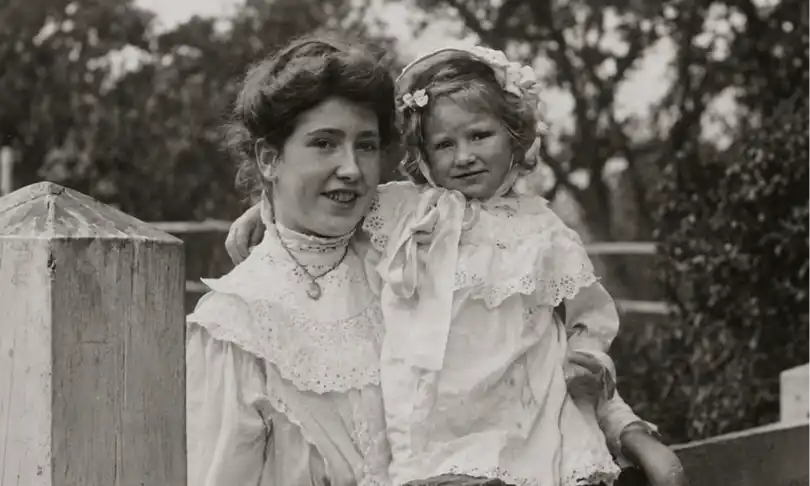
Restore this torn photograph by repairing visible tears, cracks, and damaged edges while preserving all intact original information. Use surrounding visual context only to create a visually coherent repair where necessary. Preserve the identity, facial structure, clothing, pose, background, lighting, and composition of the original photograph. Do not introduce unnecessary people, objects, text, or decorative elements. Clearly prioritize preservation of existing details over speculative reconstruction.
Best for: Torn prints and photographs with damaged edges.
Note: AI cannot know exactly what originally existed in completely missing areas. Treat reconstructed sections as visual approximations.
8. Old Wedding Photo Restoration Prompt
Prompt:
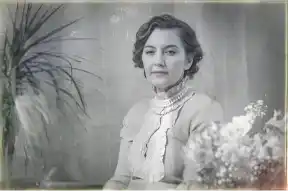
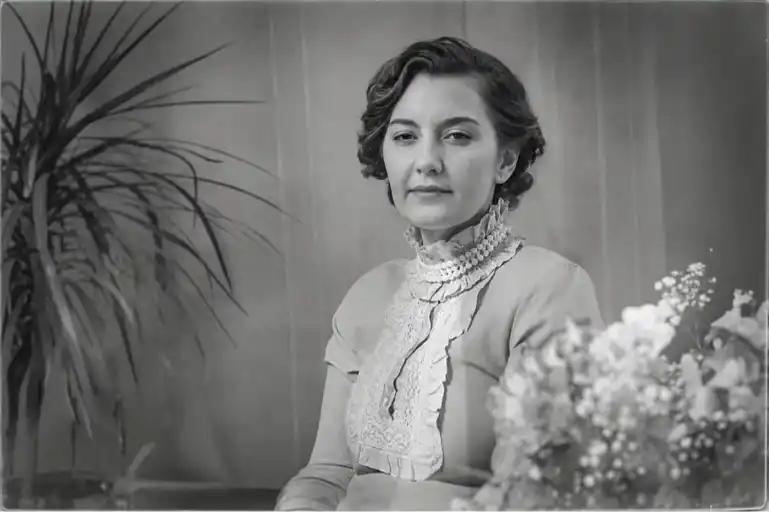
Restore this vintage wedding photograph while preserving the exact identity, expressions, pose, clothing style, accessories, and composition of the people shown. Carefully reduce scratches, dust, stains, fading, and minor physical damage. Improve facial clarity and fabric details naturally without altering the couple's appearance or redesigning period-specific clothing. Maintain realistic skin texture, natural lighting, and the emotional character of the original photograph. Keep the final restoration elegant, authentic, and faithful to the source.
Best for: Old wedding albums and anniversary photographs.
9. Historical Photograph Preservation Prompt
Prompt:
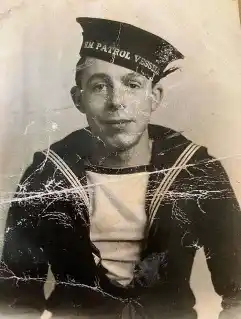
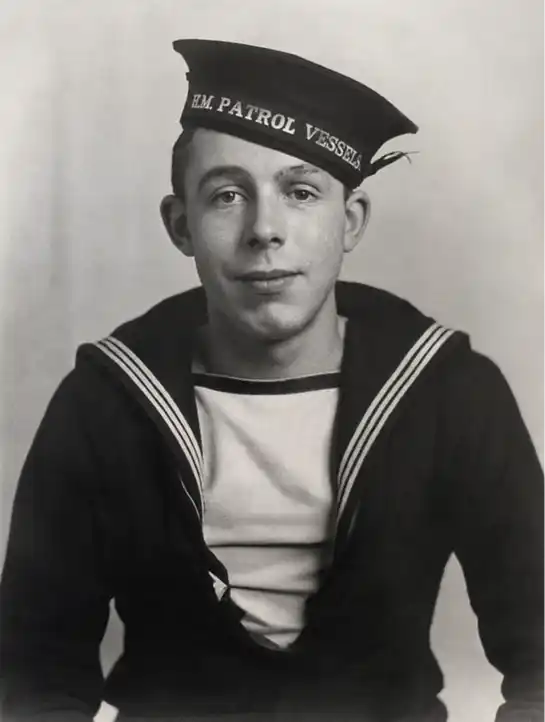
Perform a conservative restoration of this historical photograph. Reduce visible scratches, dust, stains, fading, and minor physical damage while preserving the original composition, people, architecture, objects, signage, clothing, and period-specific details. Do not modernize, beautify, replace, or creatively reinterpret historically significant elements. Avoid inventing text or details that are not clearly supported by the source image. Maintain the original photographic character and use minimal intervention necessary to improve visibility.
Best for: Historical photographs, archives, buildings, and culturally significant images.
10. Photo Restoration and High-Resolution Enhancement Prompt
Prompt:
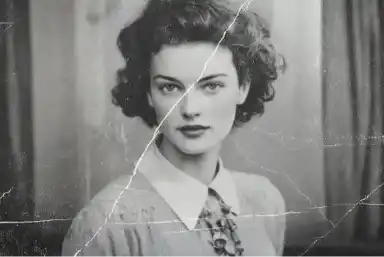
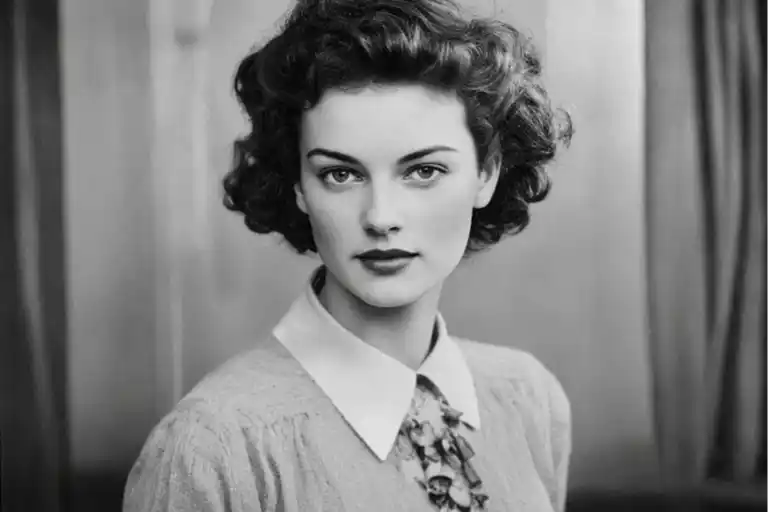
First restore this old photograph by carefully reducing scratches, dust, fading, stains, noise, and minor damage while preserving the original identity, composition, facial features, clothing, background, and photographic character. After restoration, improve overall resolution and clarity conservatively. Preserve natural skin texture, realistic edges, and subtle photographic grain. Avoid excessive sharpening, plastic-looking faces, artificial textures, or invented details. The final image should be suitable for high-quality digital viewing or printing while remaining faithful to the original photograph.
Best for: Restoring an old photograph before creating a larger digital or print version.
Quick Settings Guide for Photo Restoration
The exact controls available may vary depending on the interface or AI tool you’re using. Instead of relying on settings that may not exist in every version, use these practical guidelines:
| Setting | Recommendation |
|---|---|
| Input Quality | Use the highest-quality original scan available |
| Scan Resolution | Consider 600 DPI or higher for important printed photos when practical |
| Restoration Strength | Start conservatively |
| Facial Restoration | Prioritize identity preservation |
| Colorization | Apply only when needed |
| Sharpness | Avoid excessive sharpening |
| Noise Reduction | Keep enough natural texture |
| Output | Use the highest practical quality available |
| File Format | PNG or high-quality TIFF for preservation workflows when supported |
| Variations | Compare multiple outputs before selecting the final version |
How to Restore Old Photos Using Nano Banana 2
Step 1: Digitize the Original Photograph
Start with the best source possible.
If you have a physical photograph, scan it at a high resolution rather than taking a compressed screenshot whenever possible.
Clean the scanner surface carefully before scanning to reduce additional dust marks.
Step 2: Preserve the Original File
Never overwrite your original scan.
Create a separate working copy before beginning AI restoration.
This gives you a permanent reference if the AI accidentally changes important details.
Step 3: Identify the Main Damage
Before writing your prompt, inspect the photograph for:
- Scratches
- Tears
- Fading
- Stains
- Dust
- Blur
- Missing areas
- Color loss
Your prompt should prioritize the actual problems visible in the photograph.
Step 4: Upload the Photograph
Upload the highest-quality version available to the image-editing interface you’re using.
Avoid repeatedly compressing and re-uploading the same image.
Step 5: Choose the Most Relevant Prompt
Select one of the prompts above based on your restoration goal.
For example, use the face restoration prompt for a portrait and the conservative historical restoration prompt for archival material.
Step 6: Generate the First Restoration
Run the restoration and carefully compare the result with the original.
Pay particular attention to:
- Eyes
- Facial proportions
- Hands
- Clothing
- Jewelry
- Background objects
- Written text
- Architecture
These areas can reveal unwanted AI-generated changes.
Step 7: Refine Specific Problems
Instead of repeatedly asking the AI to restore the entire photograph, target remaining problems individually.
For example:
Keep the entire restored image unchanged. Only reduce the remaining scratches visible in the upper-left background. Preserve all faces, clothing, objects, colors, and composition exactly as they are.
This can reduce unnecessary changes to already-correct areas.
Step 8: Compare Multiple Versions
Generate and compare different restoration attempts.
Select the version that best preserves the original identity and details—not simply the sharpest or most dramatic version.
Step 9: Upscale After Restoration
If additional resolution is required, consider restoring the photograph first and increasing resolution afterward.
Review the upscaled result carefully for invented textures or facial changes.
Step 10: Archive Both Versions
Keep:
- The untouched original scan.
- The restored master file.
- A separate version for web sharing or social media.
This protects the original historical record.
Best Practices for Better Photo Restoration
Start With the Best Available Source
AI cannot fully compensate for information that is completely absent from a severely compressed image.
Whenever possible, work from the original photograph or a high-quality scan.
Preserve Identity
For family portraits, identity preservation should be more important than achieving perfect sharpness.
Include explicit instructions not to reshape or beautify faces.
Restore Conservatively
More processing does not always produce a better restoration.
Over-restoration can create unnatural skin, artificial textures, or details that never existed.
Separate Restoration From Colorization
For heavily damaged black-and-white photographs, consider repairing visible damage first.
Once the structure looks correct, test colorization separately.
Compare Against the Original
Keep the original photograph visible while reviewing the restored version.
Look for subtle changes in expressions, facial features, clothing, jewelry, signs, and background objects.
Common Photo Restoration Mistakes to Avoid
Using a low-quality screenshot: Start with the best available scan whenever possible.
Over-restoring faces: Excessive enhancement can alter identity.
Assuming reconstructed details are historically accurate: AI-generated missing details are estimates, not recovered facts.
Using unrealistic colors: AI colorization may look convincing without being historically correct.
Applying excessive sharpening: This can introduce halos and artificial textures.
Discarding the original: Always preserve an untouched master copy.
Trying to fix everything in one prompt: Complex restorations may work better when handled in controlled stages.
Pro Tips for Natural-Looking Results
Use precise language such as “preserve facial identity,” “maintain original composition,” and “avoid inventing unsupported details.”
For important family or historical photographs, compare facial features with other known photographs of the same person when available.
If only one area is damaged, instruct the AI to modify that area while leaving the rest of the photograph unchanged.
For archival or historically significant photographs, prioritize preservation over visual perfection.
Finally, always perform a manual visual review before treating an AI-restored photograph as your final version.
Frequently Asked Questions
Nano Banana 2 Photo Restoration Prompts are detailed instructions designed to guide AI-assisted image editing for tasks such as reducing scratches, fading, stains, blur, and other visible damage in old photographs.
It can be used for AI-assisted restoration and colorization workflows. However, generated colors should generally be treated as interpretations unless reliable historical color references are available.
Yes. The prompts can be adapted for family albums, childhood photographs, wedding pictures, and vintage portraits. For personal photographs, carefully check that facial identity has not changed during restoration.
AI image editing can generate visually plausible content for some damaged or missing areas. However, completely missing details cannot be recovered with certainty. AI-generated reconstruction should therefore not automatically be considered historically accurate.
In many workflows, it can be useful to address major visible damage before applying substantial upscaling. However, the best sequence may depend on the quality of your source image and the tools you’re using.
For high-quality digital preservation, lossless formats such as PNG or TIFF are commonly useful where supported. Keep the untouched original scan separately from the restored version.
Include explicit instructions to preserve facial identity, proportions, expression, age characteristics, and natural skin texture. Always compare the output manually with the original photograph.
Final Thoughts
The best Nano Banana 2 Photo Restoration Prompts do more than ask AI to sharpen an old photograph. They clearly define what should be repaired and what must remain unchanged.
Whether you’re restoring a faded family portrait, repairing scratches, colorizing a black-and-white image, or preserving a historical photograph, prioritize identity preservation, authenticity, and careful human review.
Start with the highest-quality source available, preserve your untouched original, use detailed prompts, and compare every AI-generated result carefully.
With the right workflow, AI-assisted restoration can become a useful tool for bringing greater clarity to old photographs-without losing sight of the original memories and history they represent.